Telefon Tamiri ve Teknik Servis Samsung Teknik Servis, iPhone Teknik Servis,Lg Teknik Servis,General Mobile Teknik Servis,Htc Teknik Servis,icloud kırma,google hesabı kırma Fiyat ve Bilgi İçin: +905424999344 Mobil Teknoloji Market

rom etiketine sahip kayıtlar gösteriliyor. Tüm kayıtları göster

HTC Desire 616 Dual Stock Rom ve Yükleme Rehberi

Öncelikle gerekli olan dosyaları indirelim.
Dosya indirme işlemi bittikten sonra rar dosyasını sağ tıklayarak klasöre çıkartalım.
Aşağıdaki resimde yer aldığı gibi bir klasör yapısının oluşması lazım.
Bu klasörü açtığınızda aşağıdaki dizin yapısı ile karşılaşacaksınız.
Bundan sonra yapmanız gereken resimde gösteriliyor
Sonra resimde anlatılan işlemleri yapın.

Turkcell Telefonların Servis Yazılımları

Turkcell Telefonların Stock rom dosyaları. Aşağıdaki listeden ihtiyacınız olan dosyayı indirebilirsiniz. 
  • Turkcell T50 Turbo Yazılımı - 13.10.2015İndir 
  • Turkcell T50 Yazılımı - 13.10.2015İndir 
  • Turkcell T60 Yazılımıİndir 
  • Yeni Turkcell T40 Yazılımı (B18)İndir 
  • Turkcell Maxipro cihazın yeni yazılım versiyonuİndir 
  • Turkcell Maxiplus 5 cihazın yeni yazılım versiyonuİndir 
  • Turkcell T70 Yazılım - 17.10.2016İndir

Avea lntouch 3 Large Rom İndir

  Intouch 3 Large modeli ZTE Blade Q Maxi ile aynı.
  Nadir bulunan bir telefon olduğundan rom dosyasını bulmak da zahmetli olabiliyor.  Sizin de bildiğiniz gibi telekom firmaları Çin Telefon üreticisi ZTE'ye telefonlarını yaptırmaktalar. Avea


Avea Intouch 3 Rom İndir

Instruction of ZTE Blade Q Maxi project SD card upgrade 
Ⅰ Cautions: 
 The software version and pictures in this document are just for reference only. Please use ZTE handset support website provided version to download software, moreover, SD card upgrade only allows upgrading between the same version and from low version to high version. 

1) Before you begin: a) Please back up all user data of mobile phone, including Phonebook, Messages and so on; b) Please make sure the mobile phone can be normally powered on. Otherwise it may cause download failure; c) Take out SIM card and check whether update.zip of SD card is in accordance with to be upgraded mobile phone;  copying update package to update.zip file before upgrade.  d) Please check whether the battery power is enough (2 cells more), if the battery power is not enough, please charge the mobile until the battery power is enough; Do not execute SD card upgrade while charging in case losing data or the mobile phone crashes during downloading.  2) Do not do other operations and do not take out battery by force during upgrading. 3) It will take 1-2 minutes to finish SD card upgrade. If ZTE Blade Q Maxi doesn't auto reboot or respond after a long time, please upgrade mobile phone again. If the upgrade is invalid, you can contact local ASC.  
Ⅱ Steps of SD card upgrade: 
1. Download upgrade package and copy the software to sdcard  a) Open the SD card upgrade package which is downloaded from ZTE website, check whether there is a update.zip file( The picture and file name are just for reference only), as picture 1-1 shown below: 
                                     

Yükleme talimatlarının İngilizce olması sizi korkutmasın. Resimlerle her şey anlatılıyor. Dosyayı indirin ve rar'dan çıkarın. "Instruction of ZTE Blade Q Maxi project SD card upgrade" dosyasını açın. Resimlerde yer alan talimatları takip edin. 

Tüm Samsung Telefonlar İçin Stock Rom İndirme Rehberi

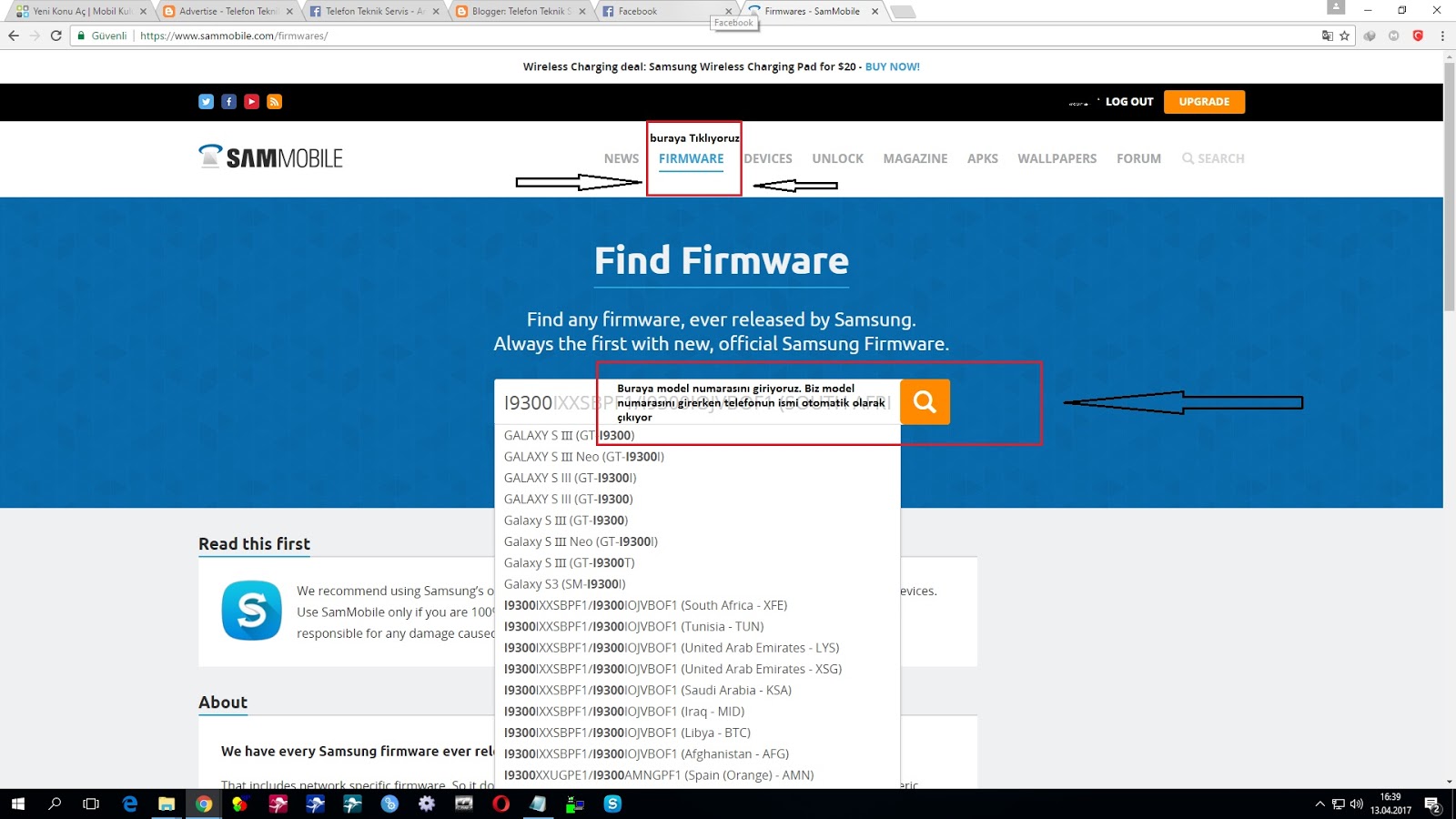
    Samsung Marka telefon için rom indirmek için öncelikle cihazımızın model numarasını bulmalıyız. Model numarasını bulmak için izleyebileceğimiz bir kaç yöntem var. Bunları sırası ile yazalım.

  • Telefonun arka kapağı ve bataryası sökülebiliyor ise:  Örneğin Note 4 veya Galaxy S4 cihazlar gibi. Arka kapağı ve bataryayı  çıkarın. Bataryanın hemen altında bir etiket göreceksiniz. Bu etiketin üzerinde cihazın imei, seri no ve model bilgileri yer alacaktır. 


  • Arka kapak ve batarya sökülemiyorsa: Samsung'un son ürettiği üst segment cihazlarda karşılaşılan bir durum. Örneğin Samsung Galaxy A serisi, Galaxy S6 ve üst modelleri. Bu cihazların arka kısmında şarj soketinin hemen üstünde, kapağın hemen üzerinde model no ve seri numarası bilgiler bulunmaktadır. 
  • Eğer telefon çalışır durumdaysa: Android sürümünüze göre Ayarlar menüsüne girin en altta Telefon veya Cihaz Hakkında bölümüne girin bu kısımda cihaz bilgilerini yer alır. Model numarasını burada alabilirsiniz. Eğer Android Marsmallow ise sürümünüz Donanım Bilgisi bölümüne girin ve model numaranızı alın. 
Telefonumuzun model numarasını da öğrendiğimize göre artık stock rom indirebiliriz. 
Stock rom indirmek için https://www.sammobile.com adresine gidiyoruz. Üyelik İşlemlerini tamamlıyoruz. 


Regular Download yavaş bir indirme sağlayacaktır. Fakat idm yükleyerek çok hızlı bir şekilde firmware indirebilirsiniz.

Huawei G7-L01 Yazılım Yükleme

Rom Yükleme Talimatları:

  1. 4 GB veya daha yüksek kapasiteye sahip bir hafıza kartı. 
  2. Telefonun şarjı en az %30 civarında olmalı
  3. Yazılım yükleme veya güncelleme işlemi tüm bilgileri sileceğinden yedek aldığınızdan emin olunuz. 
  4. Tabiiki en önemlisi rom dosyasını indirmek. Buradan indir. 
  5. İndirdiğiniz zip dosyasını klasöre çıkartın. 
  6. Zip dosyası içinden çıkan "dload" klasörünü olduğu gibi sd karta kopyalayın. KArtı telefona takın.
  7. Ses açma+ses kısma+güç tuşuna aynı anda basın. Yazılım yükleme işlemi başlayacaktır. İşlem bitince telefon kendiliğinden açılacaktır. 
  8. Eğer telefon açılım durumda ise Ayarlar-->telefon hakkında-->yazılım güncelle kısmından yukarıdaki ilk 6 basamağı izleyerek yapabilirsiniz. 

HUAWEI G7-L01 V100R001C00B250CUSTC185D001
Software Upgrade Guideline


Prepared by G7-L01 Team Date 2014-04-29
Reviewed by G7-L01 Team Date 2014-04-29
Approved by
G7-L01 Team
Date 2014-04-29


Huawei Technologies Co., Ltd.
All rights reserved
Contents


1Version introduction

1.1The following versions can be upgraded.

Versions can be upgraded
G7-L01 V100R001C00B250CUSTC185D001


1.2Upgrade package

Upgrade package
Info
Main package \dload\UPDATE.APP
Vendor package \hw,meafnaf\UPDATE.APP
Upgrade tools Micro SD card

2Upgrade environment requirements

2.1Check current upgrade environment

  1. To make sure that the Micro SD card is available and can be read and write.
Notes: A Micro SD card of 4GB or more should be available. It is recommended that The Micro SD card is made by Sandisk, Kingstone, or Kingmax.
  1. To make sure that the power of the battery is enough to run the upgrade process. It is recommended that the power of the battery is more than 30%.
  2. Upgrade operations will erase all user data. So if there are some important information, you should backup them before upgrade.
  3. If the path of main package is a .zip file in chapter 1.2, you should unzip the .zip file firstly, and get out UPDATE.APP to do upgrade operation.

3Upgrade introduction

There are two methods to upgrade: normal upgrade and force upgrade.
Normal upgrade needs to start the handset and enter the System Update module. Force upgrade is just used when the handset can’t boot up or can’t enter the idle screen.

4Upgrade operations

4.1Normal upgrade

  1. Format the Micro SD card (This operation is optional).
  2. Copy the Software: main package UPDATE.APP to a directory named dload.
  3. Copy the entire dload folder (with UPDATE.APP in it) to the root directory of the Micro SD card.
  4. Insert the Micro SD card into the handset and power on. After entering the home screen, To find System Update application, press Settings->Updater->Menu->Local update to start the upgrade. Please reference to the following pictures :


  1. When the progress bar stop, the phone will restart automatically.
  1. Please copy the Software: vendor package UPDATE.APP to a directory named dload. Then execute Step 2 – Step 5 repeatedly. This step is needed only when the version is upgraded by test member.

4.2Force upgrade

  1. Format the Micro SD card (This operation is optional).
  2. Copy the Software: main package to a directory named dload.
  3. Copy the entire dload folder (with UPDATE.APP in it) to the root directory of the Micro SD card.
  4. Make sure your handset is power off. Insert the Micro SD card into the handset. Press the VOLUME UP and VOLUME DOWN key, and then press the POWER key to power on the phone and enter the Software Upgrade Mode.
  5. When the progress bar stop, the phone will restart automatically.
  6. Please copy the Software: vendor package UPDATE.APP to a directory named dload. Then Execute Step 2 – Step 5 repeatedly. This step is needed only when the version is upgraded by test member.

4.3Exceptions

If upgrading fail, the screen shows as below with the failure cause. For example, the fail in the figure shows that there is a software version control problems, you should firstly upgrade a transfer package provided by R&D.

5Upgrade validate

5.1Check the version

        1. By step: Settings->About phone->Build number, to check the version is correct or not.

G7-L01 V100R001C00B250CUSTC185D001